
Thermal Receipt Printing Problems: Why Receipts Print Faint, Blank, or Uneven

THERMAL RECEIPT TROUBLESHOOTING

Start with the Symptom Before Replacing the Paper or Printer

Thermal receipt printing problems can look similar at first, but a blank receipt, faint output, uneven density, and fixed white lines usually point to different causes. Because a direct thermal printer uses heat rather than ink, the visible pattern on the paper is often the best place to begin troubleshooting.

Start with the simplest checks: confirm that the coated side faces the printhead, run the printer’s self-test, clean the printhead and platen roller, and try one known-good roll. These steps help determine whether the problem comes from the thermal receipt paper , the printer settings, or the hardware.

  • Blank receipt: Check the thermal side, paper type, and whether the printhead is heating.
  • Faint receipt: Check print density, printer speed, paper coating, storage, and printhead cleanliness.
  • Uneven print or white lines: Inspect the printhead, platen roller, paper path, and contact pressure.
Check the Common Symptoms
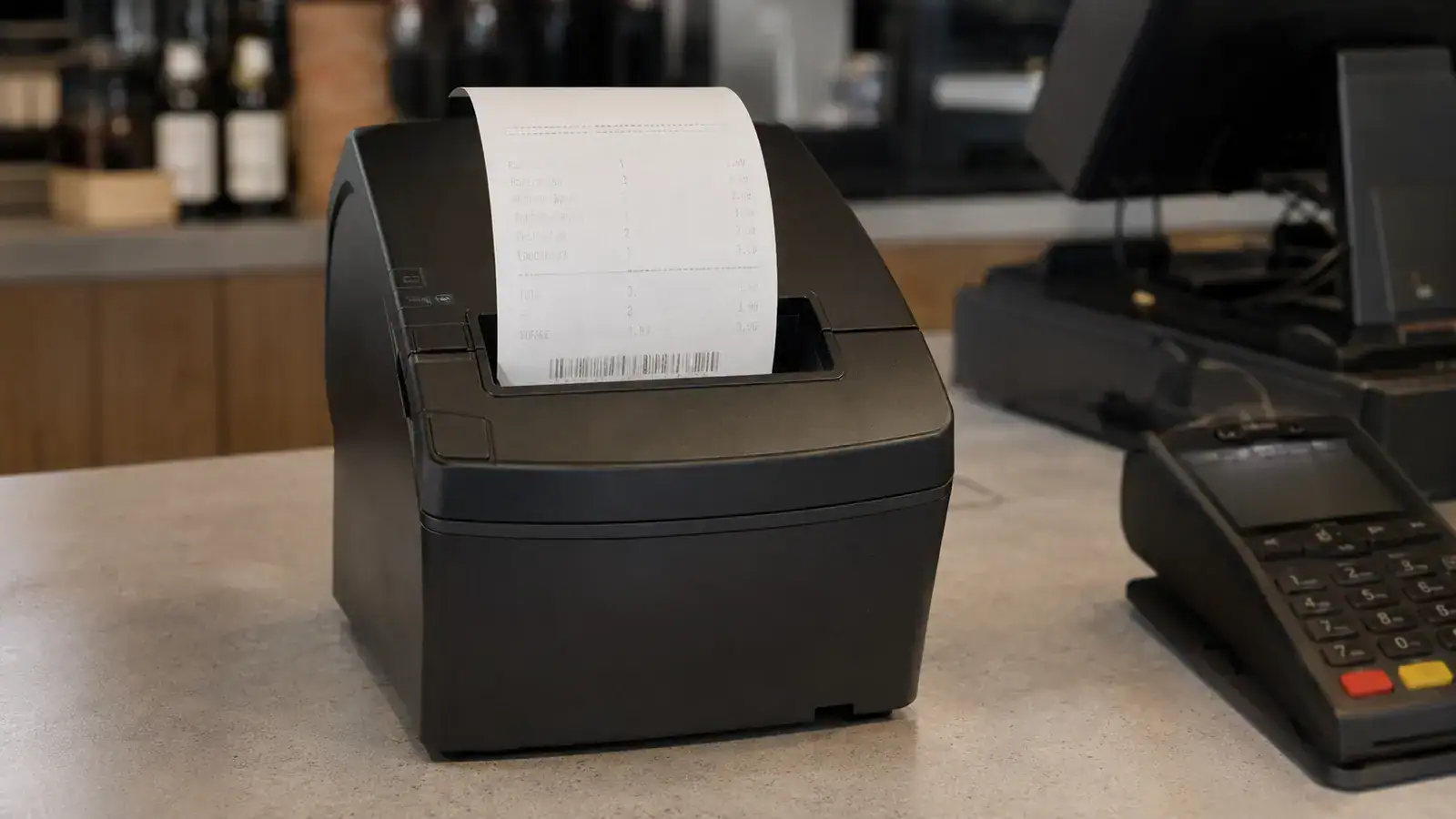
POS thermal printer producing a faint receipt with uneven print quality
QUICK DIAGNOSIS

Match the Receipt Symptom to the First Check

Different thermal receipt printing problems leave different patterns on the paper. Identifying whether the output is blank, faint, uneven, or missing the same line each time can help narrow the cause before paper rolls or printer parts are replaced.

Blank or Nearly Blank

Confirm that thermal paper is installed and that the coated side faces the printhead. If the paper feeds normally but remains blank, test both sides of the paper and run the printer’s built-in self-test.

Faint Across the Full Width

Check the printer’s heat or density setting, printing speed, paper coating response, roll storage condition, and whether dust has formed along the printhead.

Uneven from Left to Right

Inspect the platen roller, paper path, lid closure, and contact pressure. Dust, paper wrinkles, roller wear, or uneven pressure can make one part of the receipt lighter than another.

Fixed White Lines or Missing Dots

Clean the printhead and print another test receipt. If the same narrow line remains in exactly the same position, the printhead may have damaged or inactive heating elements.

BLANK RECEIPT CHECK

Receipt Paper Feeds but Prints Blank: Check the Thermal Side First

If the printer feeds and cuts the paper normally but the receipt remains blank, begin with the paper rather than the POS software. Direct thermal printing only works when the coated side of the receipt paper makes proper contact with the heated printhead.
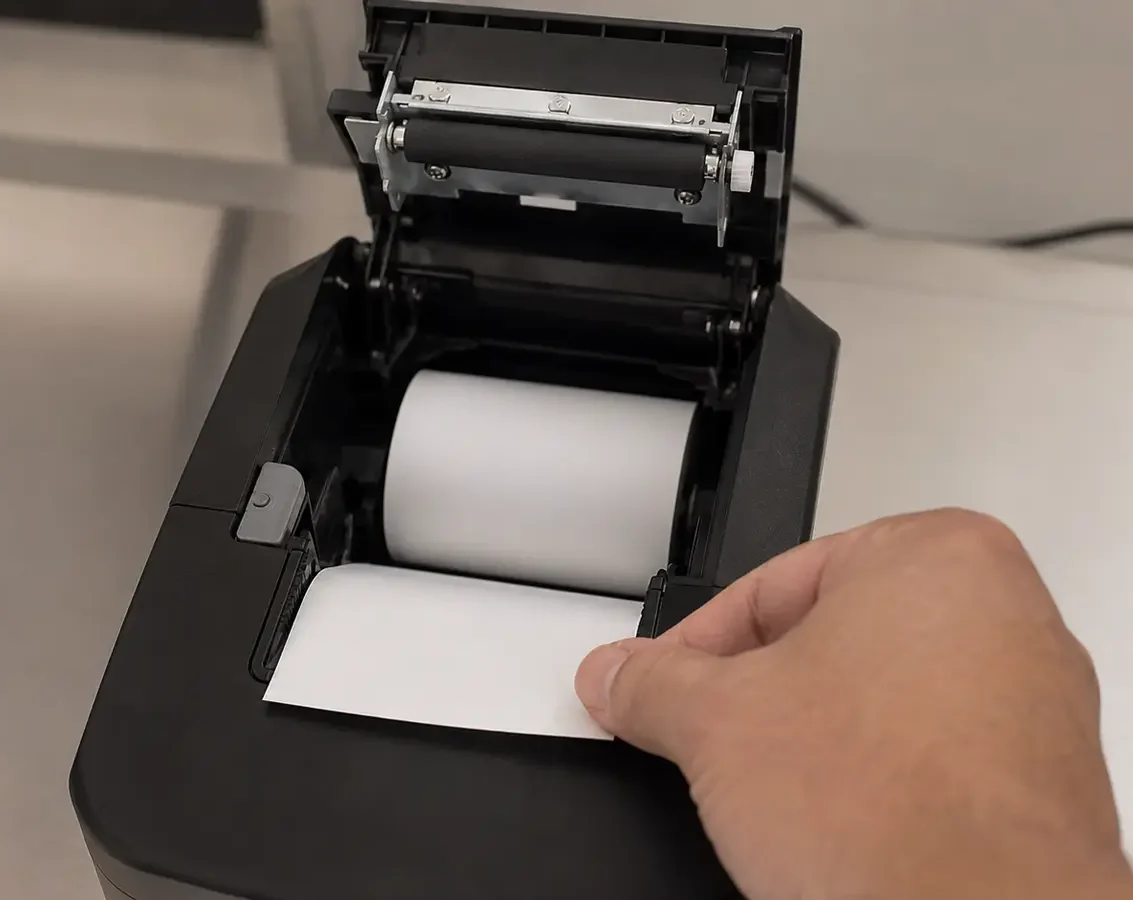
Hand loading thermal receipt paper into an open POS printer
Test the Coated Side Lightly scratch a small corner on each side of the paper with a fingernail. The heat-sensitive side will usually leave a dark mark, while the uncoated side will remain unchanged.
Reload the Paper Roll Reinstall the roll so the coated side faces the printhead. Do not rely only on whether the paper unwinds from the top or bottom, because the correct roll position varies between printer models.
Run the Printer Self-Test Print a self-test page using the method listed in the printer manual. If the self-test prints correctly, the paper and printhead are working and the problem may come from the driver, POS software, or print data.
Try a Known-Good Roll Test a compatible roll that has printed correctly in another machine. If the replacement roll works, the original paper may be non-thermal, incorrectly coated, poorly stored, or unsuitable for the printer. See our thermal receipt paper roll selection guide for size and compatibility checks.
FAINT PRINTING CHECKS

Why Thermal Receipts Print Faint Across the Full Width

When the entire receipt prints lighter than expected, the problem is usually related to printer settings, printing speed, paper sensitivity, storage conditions, or contact between the paper and printhead. Checking these areas separately helps avoid replacing the wrong part.

Print Density and Heat

A low print-density or heat setting can produce faint text across the full receipt width. Review the printer utility or POS configuration and keep any adjustment within the printer manufacturer’s recommended range.

Printing Speed and Power

At higher printing speeds, the paper receives heat for less time. Reduce the speed temporarily and confirm that the printer uses the correct power adapter before printing another test receipt.

Paper Coating and Storage

Thermal coating sensitivity varies between paper grades. Rolls exposed to high heat, sunlight, moisture, oils, or unsuitable storage conditions may respond weakly even when the paper still looks clean and white.

Printhead and Roller Contact

Paper dust can reduce heat transfer, while an incorrectly closed cover or worn platen roller can weaken contact. Clean the printing area, close the lid fully, and test again with a known-good roll.

UNEVEN PRINTING

Why Thermal Receipts Print Uneven or Show Fixed White Lines

Uneven printing usually appears as a lighter area on one side, repeated horizontal bands, missing dots, or a narrow white line running through the same part of every receipt. The position and consistency of the defect can help separate a paper-feeding problem from a printhead fault.
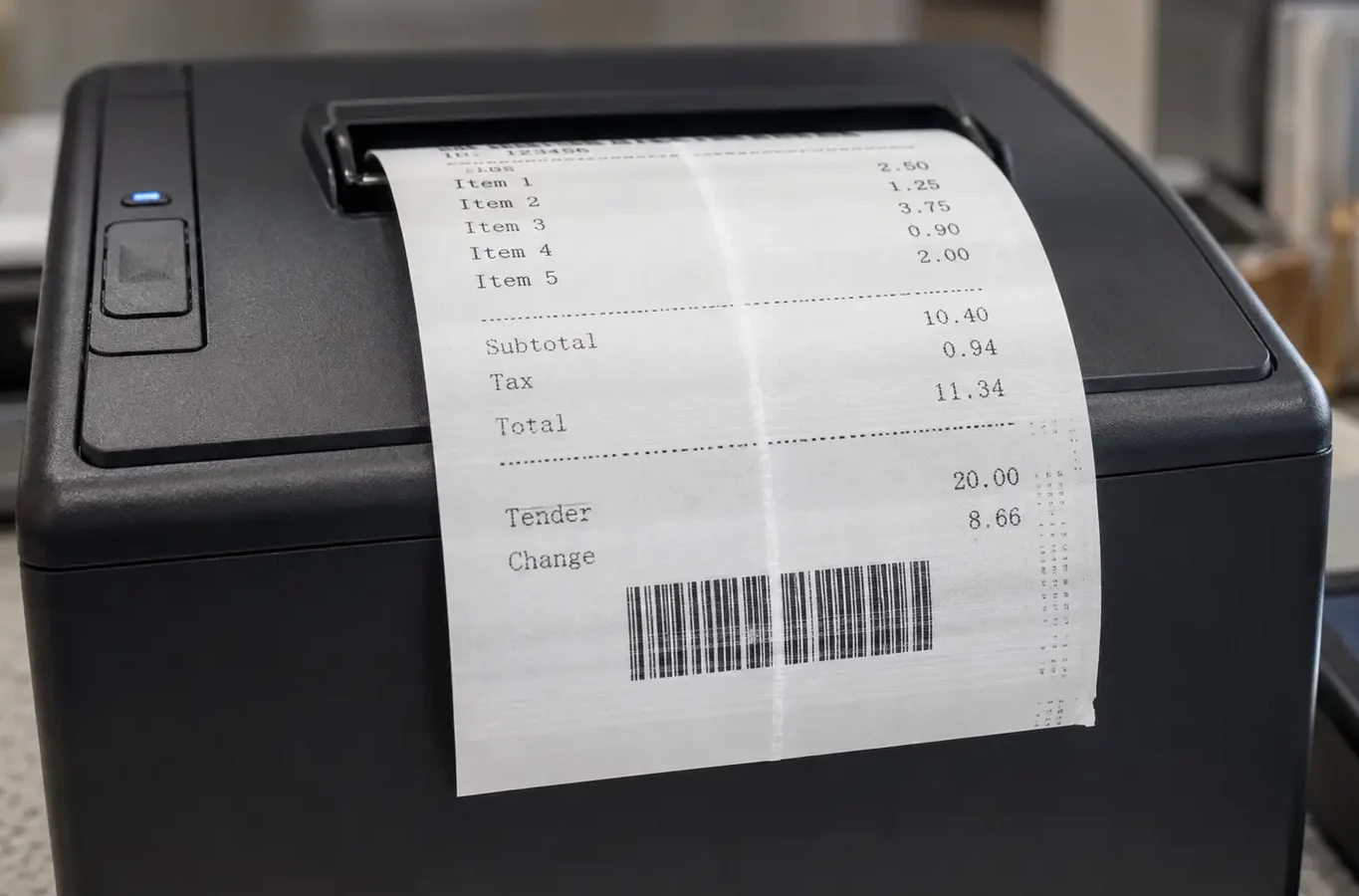
Thermal receipt with uneven printing and a vertical white line
Check Whether the Defect Stays in One Position Print two or three test receipts. A narrow white line that remains in exactly the same position usually points to debris or inactive heating elements on the printhead.
Inspect the Platen Roller Dust, adhesive residue, surface wear, or uneven pressure on the rubber roller can prevent the paper from contacting the printhead evenly across the full width.
Check the Paper Path and Cover Make sure the paper is centered, free from wrinkles, and moving smoothly through the printer. Confirm that the cover closes fully and applies even pressure on both sides.
Retest with a Known-Good Roll If the same line or light area remains after changing the paper, the cause is more likely inside the printer. Clean the printhead and roller before considering repair or part replacement.
PRINTER MAINTENANCE

Clean the Printhead and Platen Roller Before Replacing the Printer

Paper dust, coating residue, grease, and adhesive contamination can reduce heat transfer or prevent the receipt paper from contacting the printhead evenly. Cleaning the printing area is an important check before replacing the paper, printhead, or printer.
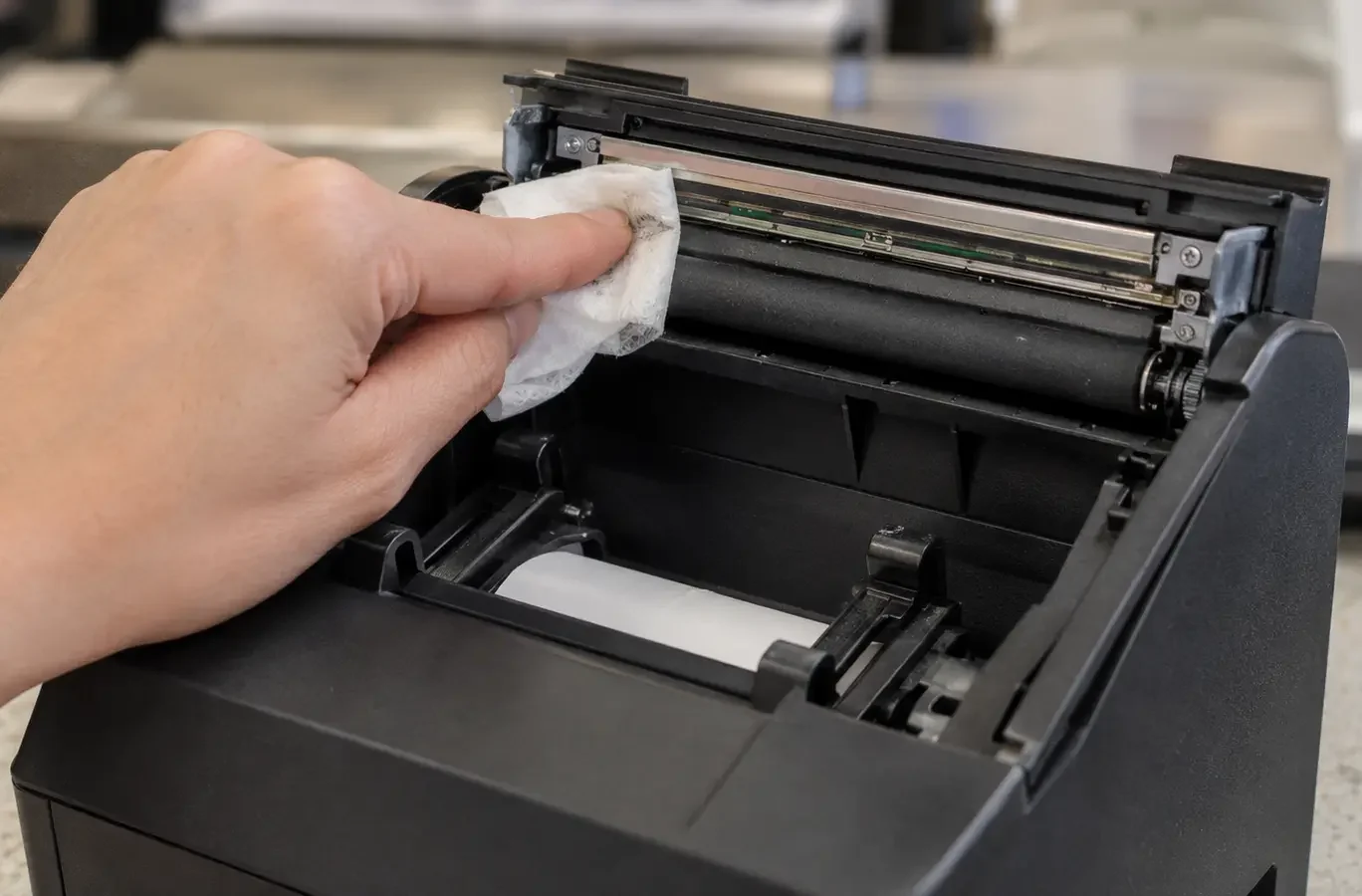
Cleaning the printhead inside a POS thermal receipt printer
Power Off and Let the Printer Cool Disconnect the printer from power and allow the printhead to cool before opening the cover. Thermal printheads may remain warm immediately after repeated printing.
Clean the Printhead and Platen Roller Use a lint-free cloth, cleaning swab, or cleaning material recommended by the printer manufacturer. Gently remove paper dust and residue without scraping the printhead or soaking internal components.
Allow It to Dry and Retest Install a known-good thermal paper roll after the cleaned area is completely dry and run another self-test. If the same white line remains, the printhead may require service or replacement.

PAPER OR PRINTER?

How to Tell Whether the Problem Comes from the Paper or Printer

A single test receipt is not always enough to identify the cause. Comparing the same paper in another printer and testing a known-good roll in the affected printer provides a more reliable way to separate a paper problem from a printer problem.

PAPER CHECK

Signs the Paper Is the Likely Cause

The original roll or paper batch is more likely to be responsible when the printing problem changes or disappears after the paper is replaced.

  • A known-good thermal paper roll prints clearly in the same printer.
  • The problem appears only with one roll, carton, or paper batch.
  • The same paper prints faintly in more than one compatible printer.
  • The coated side responds weakly during a simple scratch test.
  • The rolls were exposed to heat, sunlight, moisture, oils, or chemicals.

PRINTER CHECK

Signs the Printer Is the Likely Cause

The printer is more likely to be responsible when the same defect remains after changing the paper and completing the basic cleaning and setting checks.

  • The self-test receipt shows the same faint area or fixed white line.
  • Several known-good paper rolls produce the same printing defect.
  • The paper prints clearly in another compatible thermal printer.
  • The problem remains after cleaning the printhead and platen roller.
  • The cover, roller, cutter, power supply, or printhead shows damage or wear.

Frequently Asked Questions About Thermal Receipt Printing Problems

These common questions explain why thermal receipts print blank, faint, uneven, or with fixed white lines, and how to determine whether the cause comes from the paper, printer settings, printhead, or platen roller.

A blank receipt is often caused by the roll being installed with the non-coated side facing the printhead, using non-thermal paper, or a printhead that is not heating correctly. Check the coated side, reload the roll, and print a self-test page before changing software settings or replacing the printer.

Faint printing may be caused by a low print-density setting, excessive printing speed, weak thermal coating, unsuitable storage conditions, paper dust, or poor contact between the paper and printhead. Compare the result with a known-good roll and check the printer settings before replacing any parts.

A fixed white line usually appears when debris blocks part of the printhead or when one or more heating elements are damaged. Clean the printhead and platen roller, then print another self-test. If the line remains in exactly the same position, the printhead may require service or replacement.

Test a known-good thermal paper roll in the affected printer and try the original roll in another compatible printer. If the problem follows the paper, the roll or coating is the likely cause. If several good rolls show the same defect in one printer, check the printer settings, printhead, platen roller, and paper path.

Yes. Cleaning can improve faint, uneven, or streaked printing when paper dust, coating residue, grease, or adhesive contamination interferes with heat transfer. Power off the printer, allow the printhead to cool, follow the manufacturer’s cleaning instructions, and let the cleaned area dry completely before testing.

CUSTOM THERMAL PAPER ROLLS

Need Reliable Thermal Receipt Paper Rolls for Your POS System?

If receipts remain faint, blank, or uneven after the basic printer checks, the paper grade or roll specification may not match the equipment or operating conditions. Share your printer model, roll size, paper requirements, and current printing problem, and PaperMyna can help review a practical thermal receipt paper specification.

Request a Quote Explore Thermal Paper Rolls

What to Prepare

Printer model Roll width Roll diameter Core size Paper grade Blank or printed Packing method Order quantity