
Measure the Full Width of the Two-Across Roll
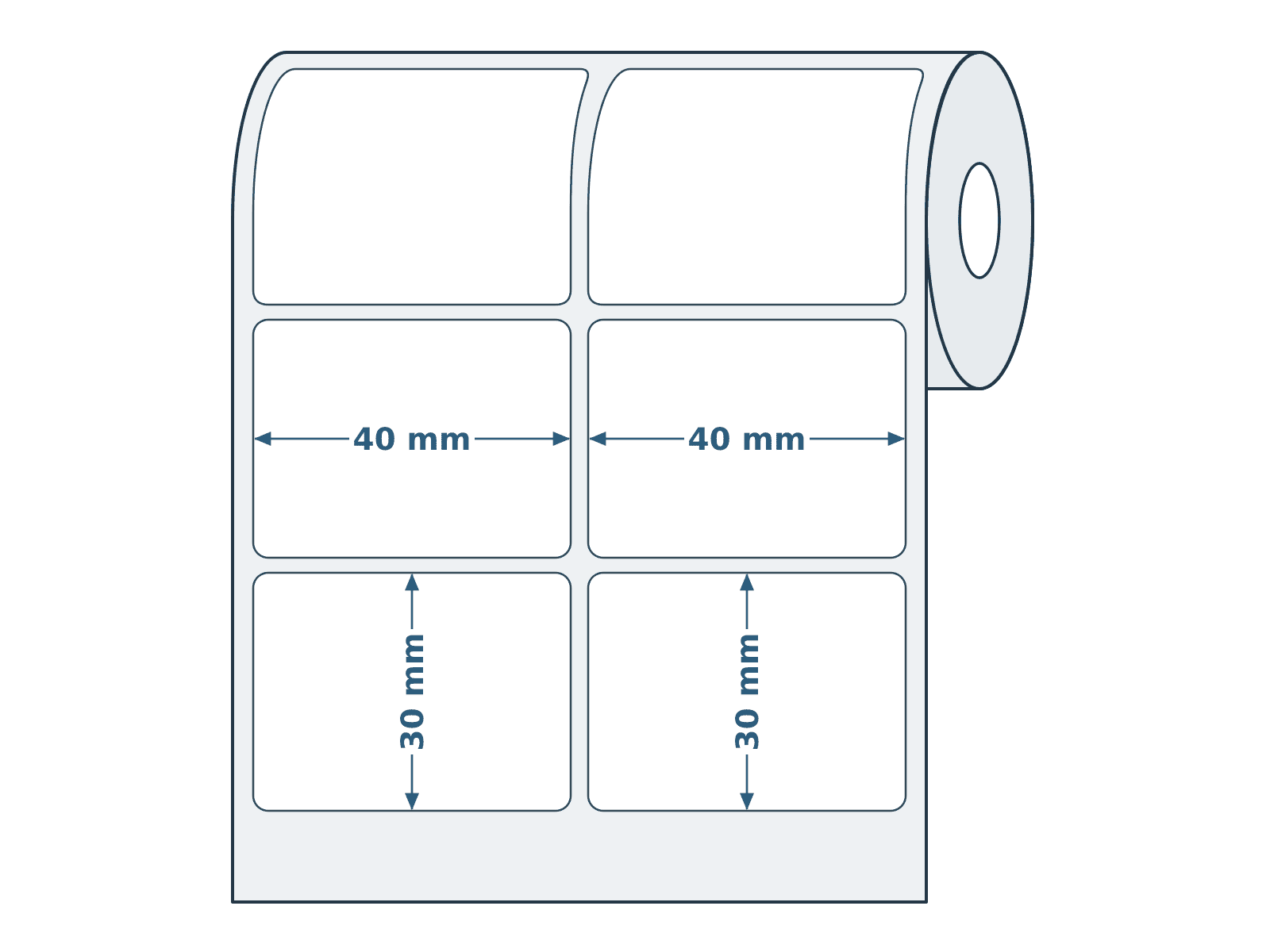
On this 40 × 30 mm two-across roll, each label is 40 mm wide across the roll and 30 mm long in the feed direction. In BarTender, use the full liner width for the page width and the dimensions of one label for the template size.
Unroll a short section and measure the liner from edge to edge. Then measure the gap between the two labels and the margin on each side. In this example, the two labels account for 80 mm of the liner width. The center gap and both side margins make up the rest.
Set Up Two Columns in BarTender
- In Page Setup → Page, set the page width to the full liner width you measured.
- In Layout, set Rows to 1 and Columns to 2. Under Template Size, enter the width and height of one label.
- Under Gap / Pitch, match the Horizontal gap to the space between the labels. Check the left and right margins against the liner edges.
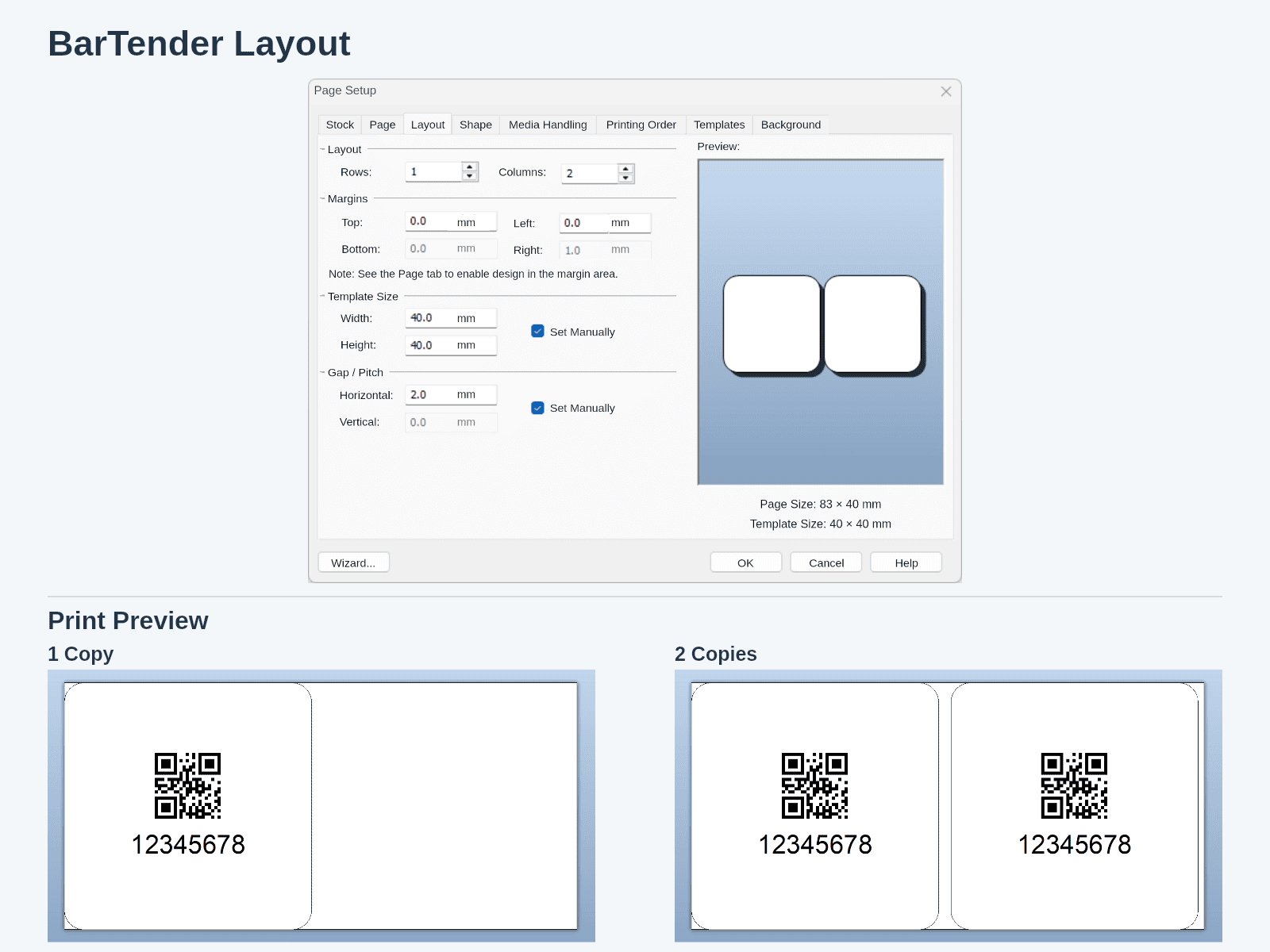
Open Print Preview with two copies and check that both labels appear in the same row. Compare the one-copy and two-copy previews.
If Both Columns Appear in Preview but Only One Prints
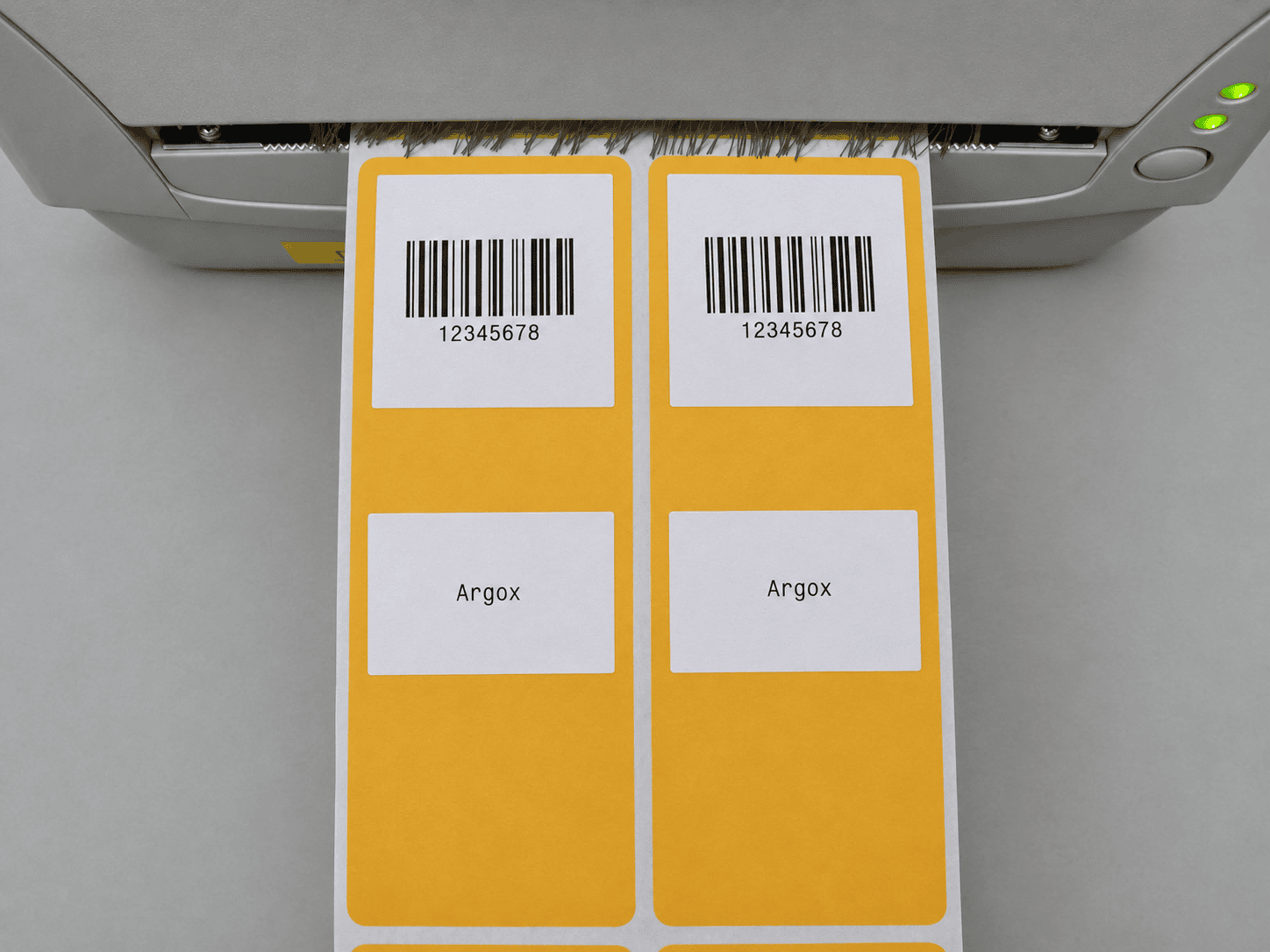
Check the printer’s print width
Check the stock width in the driver for the printer selected
in BarTender. If the printer has a separate print-width
setting, check that it covers the artwork in both columns.
A narrow setting can cut off the outer column.
Check side-to-side alignment
If the outer barcode is partly cut off, check the horizontal
offset in the driver or printer settings. Make sure the
media guide keeps the liner straight as it feeds.
Print four copies and check two rows
Use the same test template you previewed. In this two-column
layout, four copies should fill two rows. If the same side
stays blank on both rows, compare the printed output with
the preview before changing another setting.